Registers
Your order book, with a number on every entry and a team on every stage. Reva fills it in from WhatsApp for you to approve.
A register is the book you already keep: orders, repairs, approvals. In Reva each entry has a number, each stage can belong to a team, and Reva proposes entries from your chats for you to approve.
Where it is
- On the web: under Registers in the left rail: Tasks, the registers you pinned, and All registers, which shows every register you can open.
- On the phone: open the menu in the dock and look under Registers.
Pin the registers you use most, with Pin on a register's page or the pin beside it on All registers. Your pins are yours alone and show on the web and the phone. Until you pin one, the rail suggests the registers you opened last.
Who sees a register
Owners and admins see every register. Anyone else on your team sees a register when:
- they made it,
- they, or a department they are in, own one of its stages, or
- it was opened to their department, under the register's menu, Who can open this register.
On a register they can see, they add, change, move and archive entries, and so can Ask Reva for them. Its columns, stages and rule are changed only by whoever made it, an owner or an admin.
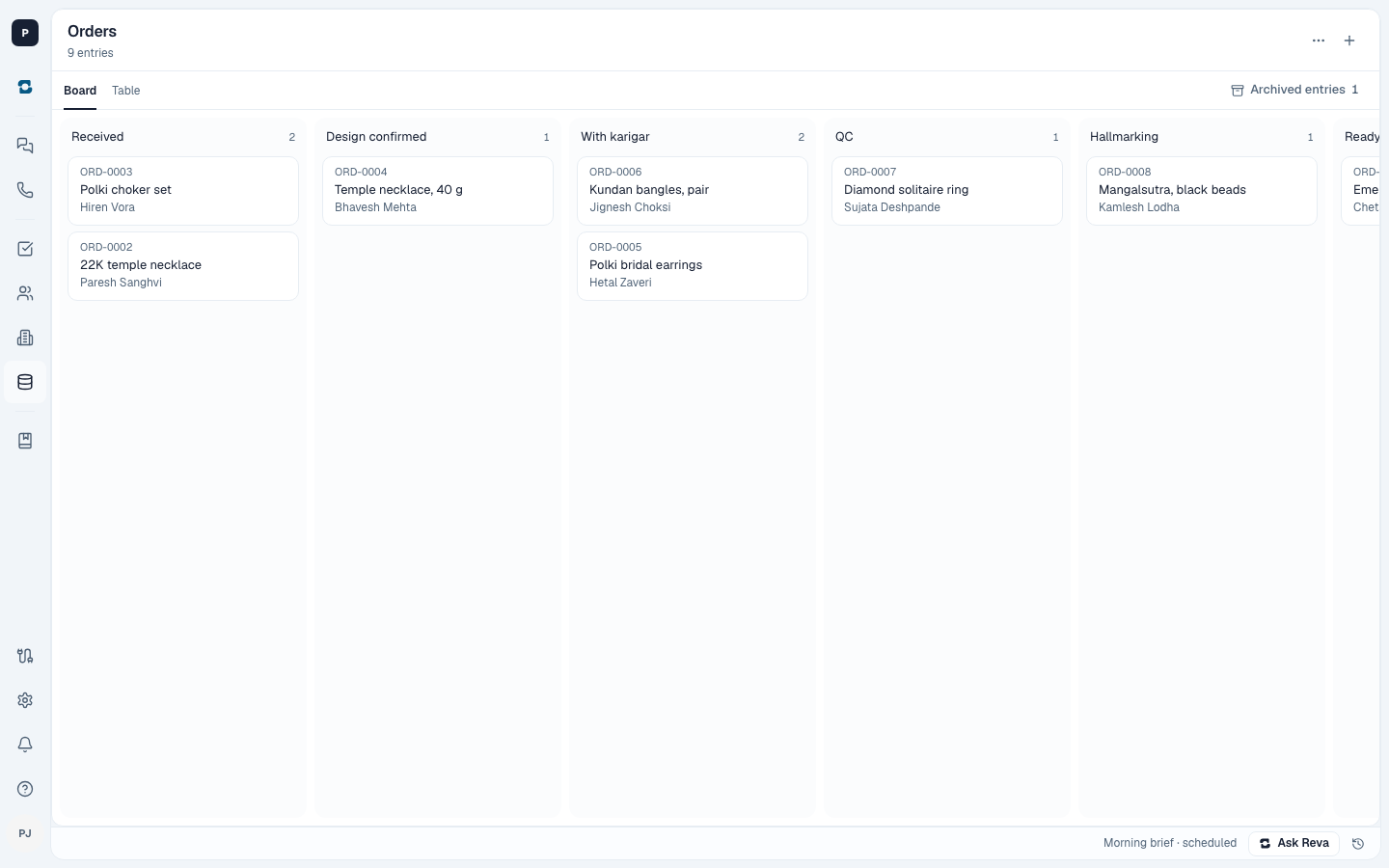
Starting a register
Press New register and choose where to start from:
- Orders: a ready-made order book, from Received to Delivered.
- Blank: one column; add the rest as you go.
- Ask Reva to build it: Reva asks what you keep track of, then proposes a register for you to approve.
Give it a name and a number prefix (ORD makes ORD-0001, ORD-0002, and so on).
Stages and who owns them
Each stage can belong to a department; set these up first in Settings if you have none. When an entry moves into a stage, that department gets a work item for it, titled with the stage and the entry, such as "Design confirmed: Bridal choker, 22kt". A stage with no owner raises no work, and the final stages, such as Delivered, close the entry.
This is how a register hands work to the right team without anyone forwarding it.
Reva fills it in from WhatsApp
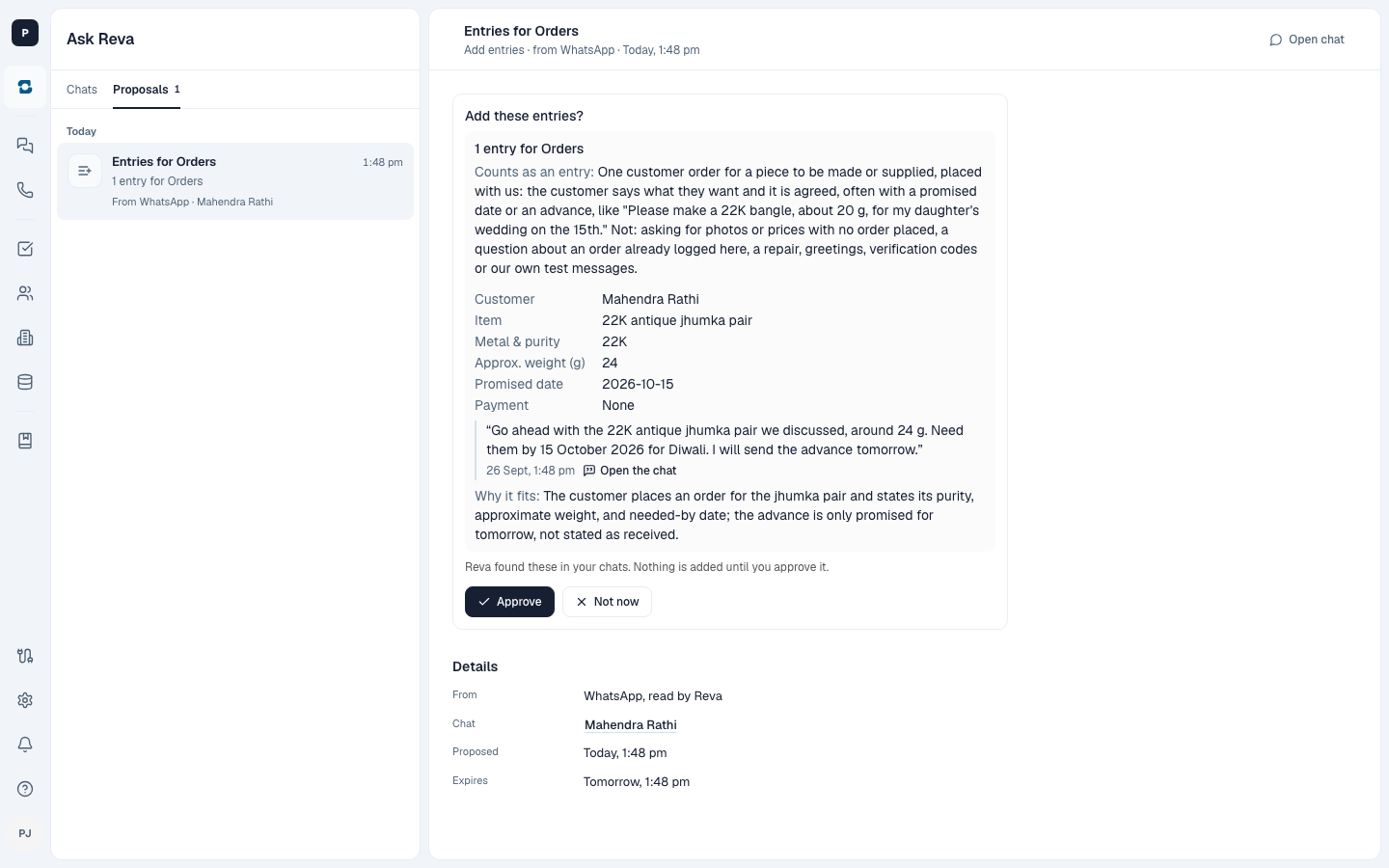
Each register has a rule for what counts as an entry. On the web it is under the register's menu, What counts as an entry. For example: "a customer asks us to make a piece, with a date or an advance".
Reva reads new WhatsApp messages against that rule. When it is confident a message is an entry, it proposes one: the item, weight, date, payment, the message it came from, and why it fits. A register with no rule gets no proposals, and a message Reva is unsure about gets none either, so keep adding the ones it misses yourself. When Reva suggests a register or entries, nothing is added until someone who can decide approves the card. See Waiting for you.
Adding and moving entries yourself
- Add an entry: + on the register, then fill in the details.
- Move a stage: tap the stage on an entry, or drag the card on the web board.
- Edit a field: tap it.
Every change is kept in the entry's history, with who made it.
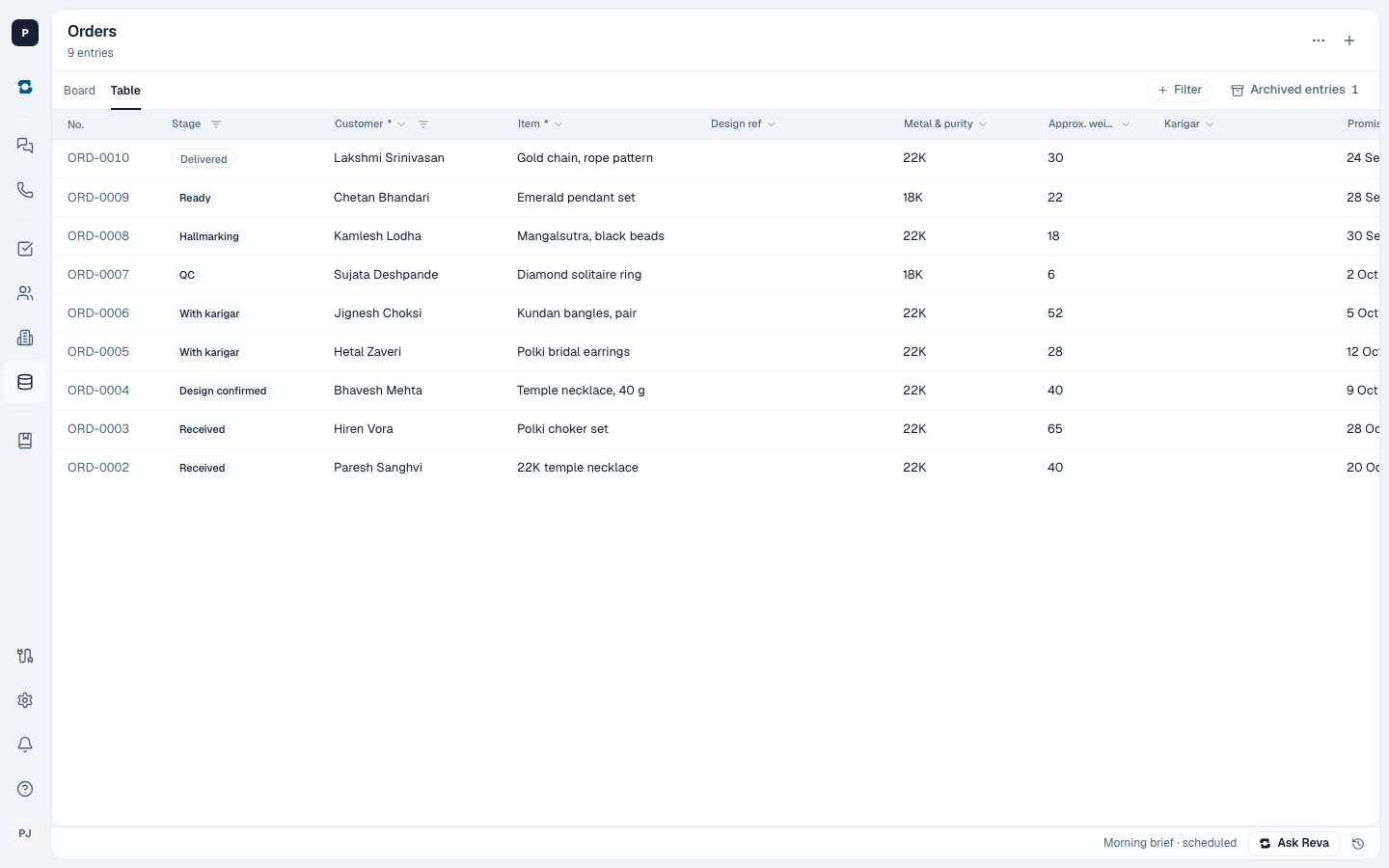
Switch to Table to see every order at once, with its stage, customer and values in columns.
Web and phone
The web has everything, including the board and table views, archiving, and saving a register as your own template. The phone can create registers, add and edit entries, and move stages.