Work
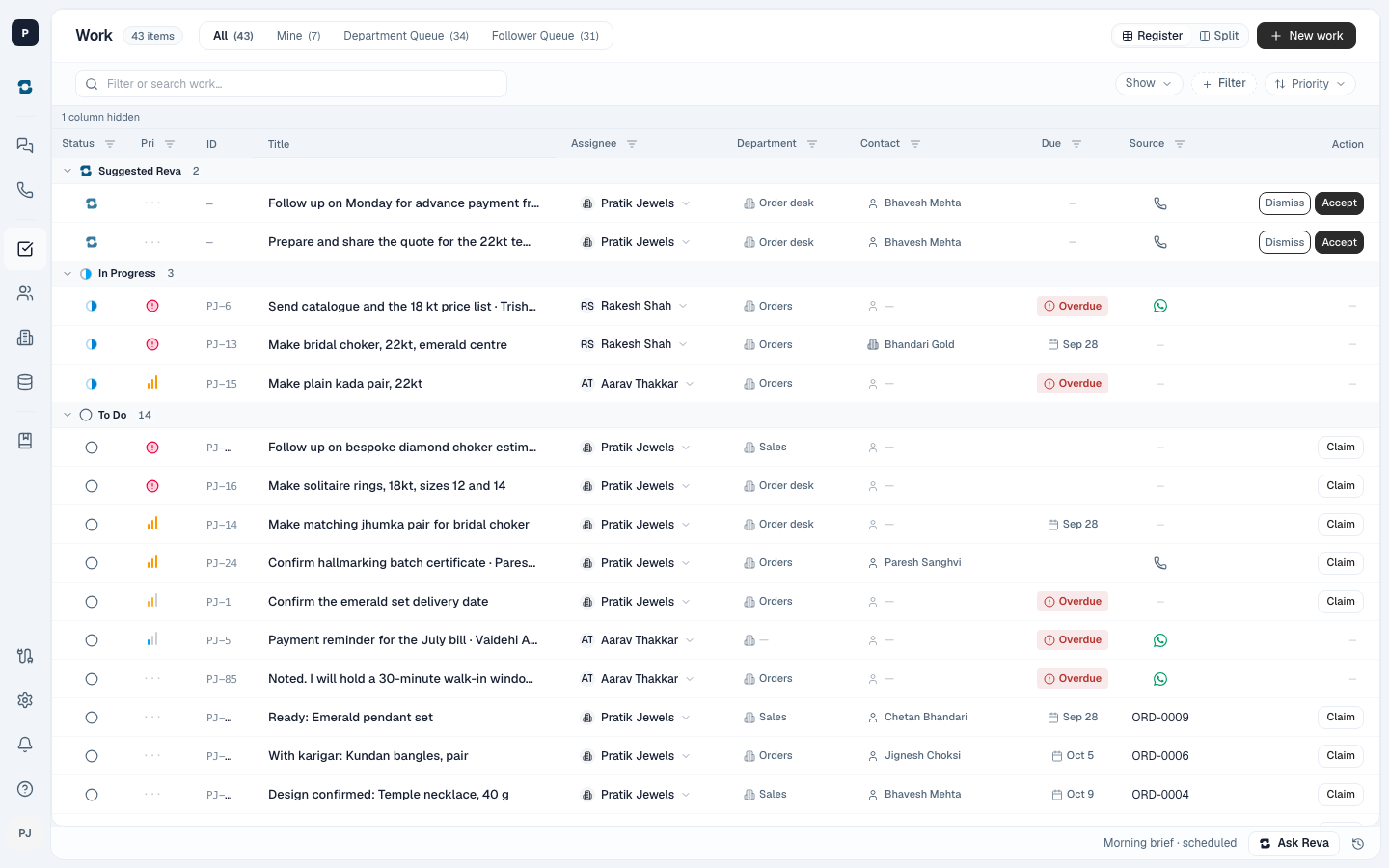
Everything that needs doing, and who has it. Reva suggests work from your chats and calls; a suggestion becomes work when someone accepts it.
Work is the list of everything that needs doing: orders to follow up, quotes to send, payments to chase. Each item can have a person, a team and a due date; work nobody has taken yet waits in a shared queue until someone does.
Where it is
- On the web: Tasks under Registers in the left rail.
- On the phone: the third icon in the dock, Work.
Where work comes from
- Reva finds it. When a customer asks for something in a chat, Reva files the task with the chat attached, or asks you first, as you choose under What Reva can do without asking. Work Reva finds in a call always comes as a suggestion for you to accept.
- A register stage raises it. When an order moves into a stage that belongs to a department, that department gets the work. Stages you have not given a department raise nothing. See Registers.
- You ask Reva for it. Work you ask Ask Reva to create is added straight away, as you.
- Somebody adds it. Press New work on the web, or + on the phone.
When Reva asks first
If you chose Ask me first, Reva's task appears in Needs you. Choose Accept to make it real work, or Not needed. If Reva filed one you didn't want, open it and choose Undo.
Finding work
- Quick filters on the phone: All, Mine, Unclaimed, Overdue, Done.
- Filter by team or person. On the phone, open the filter sheet and choose an assignee, a department, a priority or a due date. On the web, use the filter chips above the list.
- Search by what the work is about.
A work item
Each item shows its status, priority, who has it, the department, the due date, and Where this came from: the chat or call it was raised from.
- Comments: say what happened on the job itself, where everyone looking at it will see it, instead of in a side chat.
- Attachments: add a photo or a document.
- Take this: assigns it to you.
Who can do what
You can edit, hand on or archive work you created or that is assigned to you; owners and admins can do so for any work. Your department's colleagues and followers can comment, and unassigned work has to be claimed before you can change it.