The Inbox
Every WhatsApp conversation from every number you connect, in one list. Reply from the shop's number, or leave your team a note.
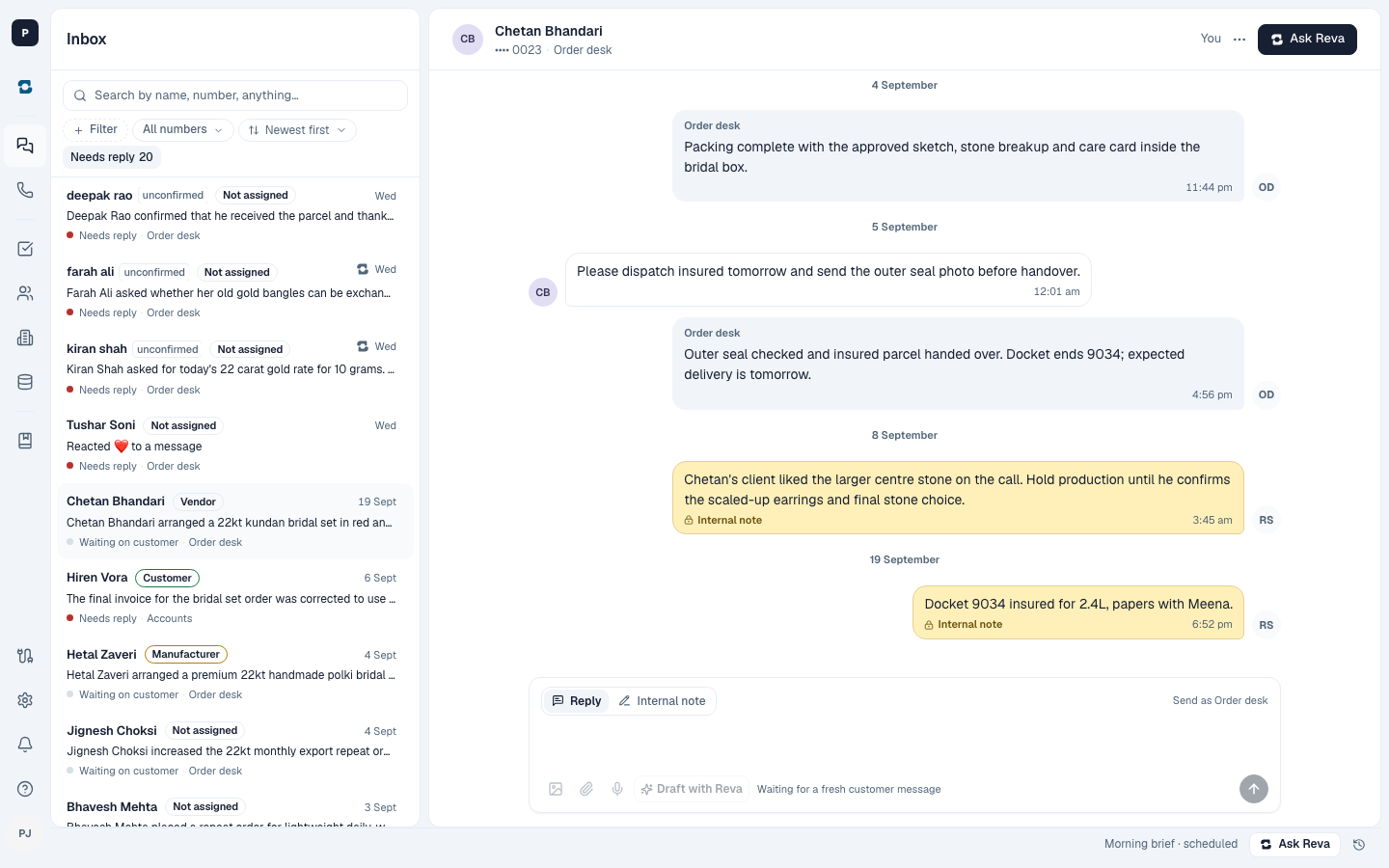
The Inbox is every WhatsApp conversation your business has, from every number you have connected, in one list. It is where most of the day happens.
Where it is
- On the web: Chats under Inbox in the left rail.
- On the phone: the first icon in the dock, Chats.
Choosing a number
If you have connected more than one number, the list shows all of them together. To see one number on its own, use the number picker at the top of the list: on the web it reads All numbers, on the phone it opens a sheet called Which number that also shows how many threads each number has.
People who are not an owner or admin see only the numbers of the departments they are in. See Put someone in a department.
What the list tells you
Each conversation shows the customer's name, the number it came in on, and where it stands. Needs reply means the customer is waiting on you. On the web, the Needs reply toggle at the top narrows the list to exactly those.
On the phone, tap the status chip on a conversation to change where it stands: Waiting on customer, Waiting internally, Resolved and so on. Resolved is how you mark a conversation done.
Replying
Open a conversation and write in the box at the bottom. Your reply goes out as a real WhatsApp message from the business number, not from your own phone, so the customer sees the shop.
You can add photos, documents and voice notes. On the web there is also Draft with Reva, which writes a reply for you to check before you send it.
Replies follow WhatsApp's 24-hour rule: see How replies work.
Internal notes
Switch the box from Reply to Note (on the web the switch reads Internal note). A note is for your team only: the customer never sees it. It sits in the conversation marked Internal note, so the next person to open the chat reads it in context.
Use it for the things that usually get lost in a side chat: "keep the emerald tray ready", "he prefers a call after 6".
Turning a message into work
On the web, open a message's menu and choose Create work. On the phone, hold a message and choose to make work from it. Reva also files work from chats on its own, or asks you first, as you choose; see Work.
Stopping tracking a chat
Owners and admins can stop Reva tracking a chat that is not a customer, such as a personal chat. On the web it is under the conversation's menu, Stop tracking this chat. Read the confirmation before you agree: the chat disappears from the Inbox, search and summaries, and any work raised from it goes too. Nothing is deleted from WhatsApp.